

Set opening hours for each location, limit submissions per category, and design emails that match what you send
Opening hours now belong to each of your locations, with special days and popup dates, and your public pages show which location is open today. Calls can limit how many submissions one artist makes in each category, the email designer looks like the email you send, and subscriber imports show their progress. Renamed events keep their shared links, and event checkout, payment records and receipts are steadier.
Set opening hours for each of your locations
Opening hours now belong to each location: in Settings, Locations, link each place to its Google listing or type its weekly hours, and give a popup its own start and end dates. If you retire or archive your main location, another active location takes its place, and its hours are the ones visitors see. Organizations with one location see no change.
Add holiday closures and special hours by date
Each location can have special days, closed or with custom hours, for a single day or a range of dates. Special days take priority over the hours on your Google listing, so a holiday closure or a late opening shows correctly without editing your regular week. A note you add to a special day appears on your public pages.
Limit submissions per artist in each category of a call
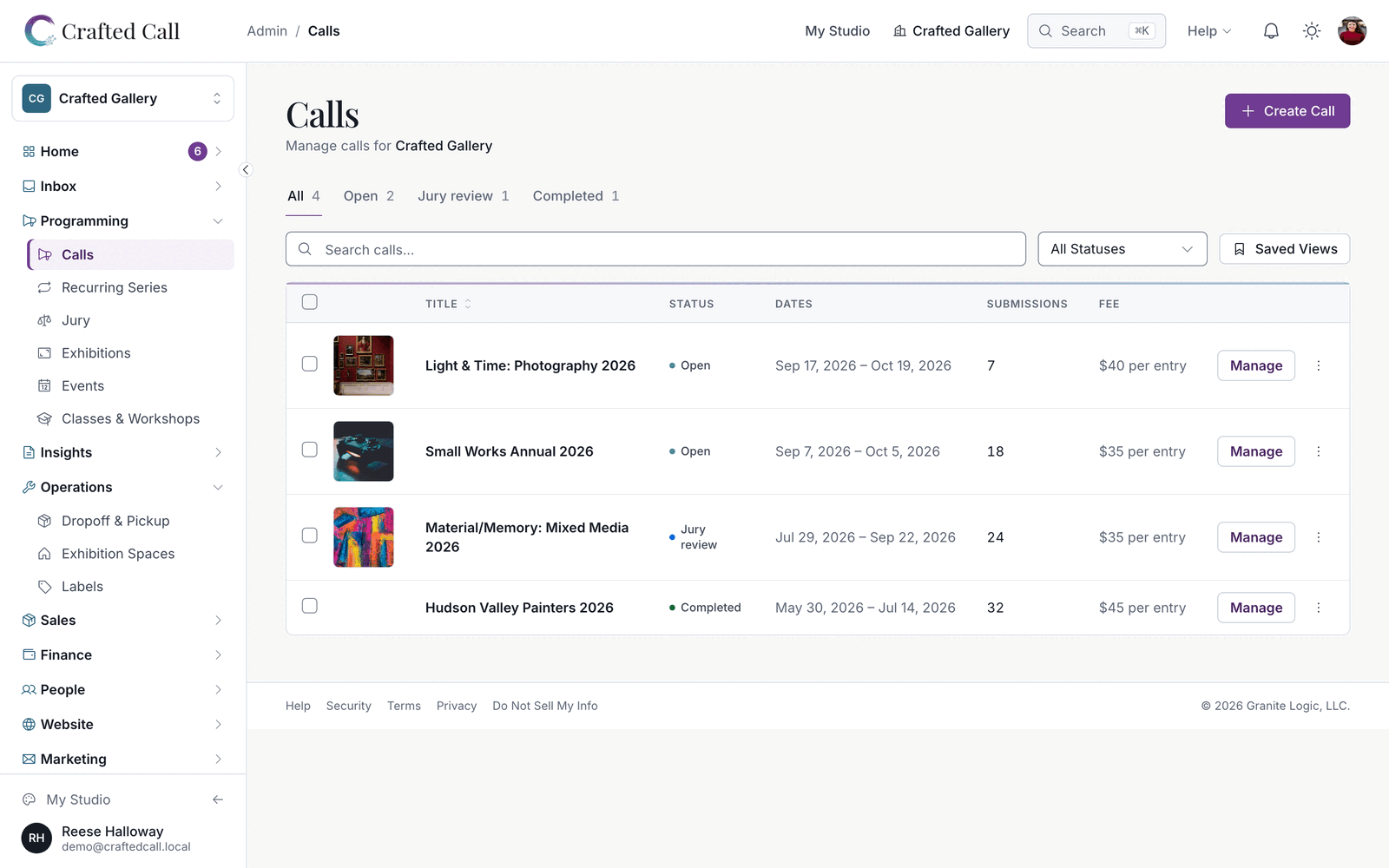
You can set how many submissions one artist may make in each category of a call, on top of the call's own limit per artist. Set it on the category under the call's categories. An artist who reaches a category's limit is told which category is full before paying.
Show visitors which location is open today
Your public pages name the locations that are open today, and your footer lists each location's address and regular weekly hours. Each location's day follows its own time zone, and a popup appears a week before it opens. A location with no hours set stays off your public hours.
Design emails that look like the email you send
The email designer shows blocks at the same spacing as the delivered message, without a box around every block. The outline and toolbar appear when you point at or select a block. Grab a block's handle to move it, drag a whole section by its handle, or drag a block from the left panel and drop it exactly between two blocks.
Import Mailchimp subscribers and watch the progress
Large subscriber imports run in steps and show progress as they go, so you can see a long list arriving. The Mailchimp tab maps Tags, City, State, Postal Code, Country and the subscribed and unsubscribed dates on its own. The Import button opens again as soon as you close the importer.
Rename an event and keep the links you already shared
When you rename an event, the address you already shared takes visitors to the event. Event checkout completes on its own after an interruption, with the ticket, receipt and confirmation email in place, and a buyer who starts checkout again keeps their place. A payment that arrives after a registration was cancelled is recorded and flagged for your staff to decide on. Event setup explains what an age limit asks of attendees at checkout.
Quality work across payments, receipts and digital artworks
The Fee Breakdown on the Payments page names each payment for what it was, and marking a payout paid a second time tells you it is already paid, and when. Receipts for storefront orders paid to your own Stripe account load, and digital artworks show their watermarked preview on public pages and stay hidden behind a placeholder while a preview is being prepared. Payment link emails keep their payment button and your note, decision letters pick up again when sending is interrupted, and imported members keep their sign-in when you change their email. Security and reliability improvements run throughout.