

Setting Up Your Organization
When you sign up as a gallery, your organization is created for you and you land on your dashboard. Two quick questions come first, then a checklist that fills itself in as you work. There is no long wizard to sit through.
Your first two answers
The dashboard welcome asks for:
- Gallery name, as artists should see it. Until you answer, your organization carries a placeholder name, and the name also sets your web address.
- Country. Choosing it sets your currency, locale, measurement system and paper size. If your country spans more than one time zone, you also choose the time zone, so deadlines close at the right hour.
Choose Save and Continue. You can change any of it later under Organization Settings. Get the country right: it decides currency, paper size, measurement and the tax rules that apply to you.
Then pick how to start: Start a New Call, Import From a Spreadsheet, or Have Us Set It Up, where we rebuild your last call for you.
If you add an organization from an artist account instead, you fill in a single Create your organization form with the same details.
About the web address
Your organization's address (its slug) is generated from its name. If you rename the organization before you have published anything, the address follows the new name automatically, so an early typo fixes itself.
Once you publish your organization page or your first call, the address is fixed. Links you have shared keep working, and a rename after that point changes your name without breaking your links. If you genuinely need the address changed after publishing, contact support.
Get Your Gallery Ready
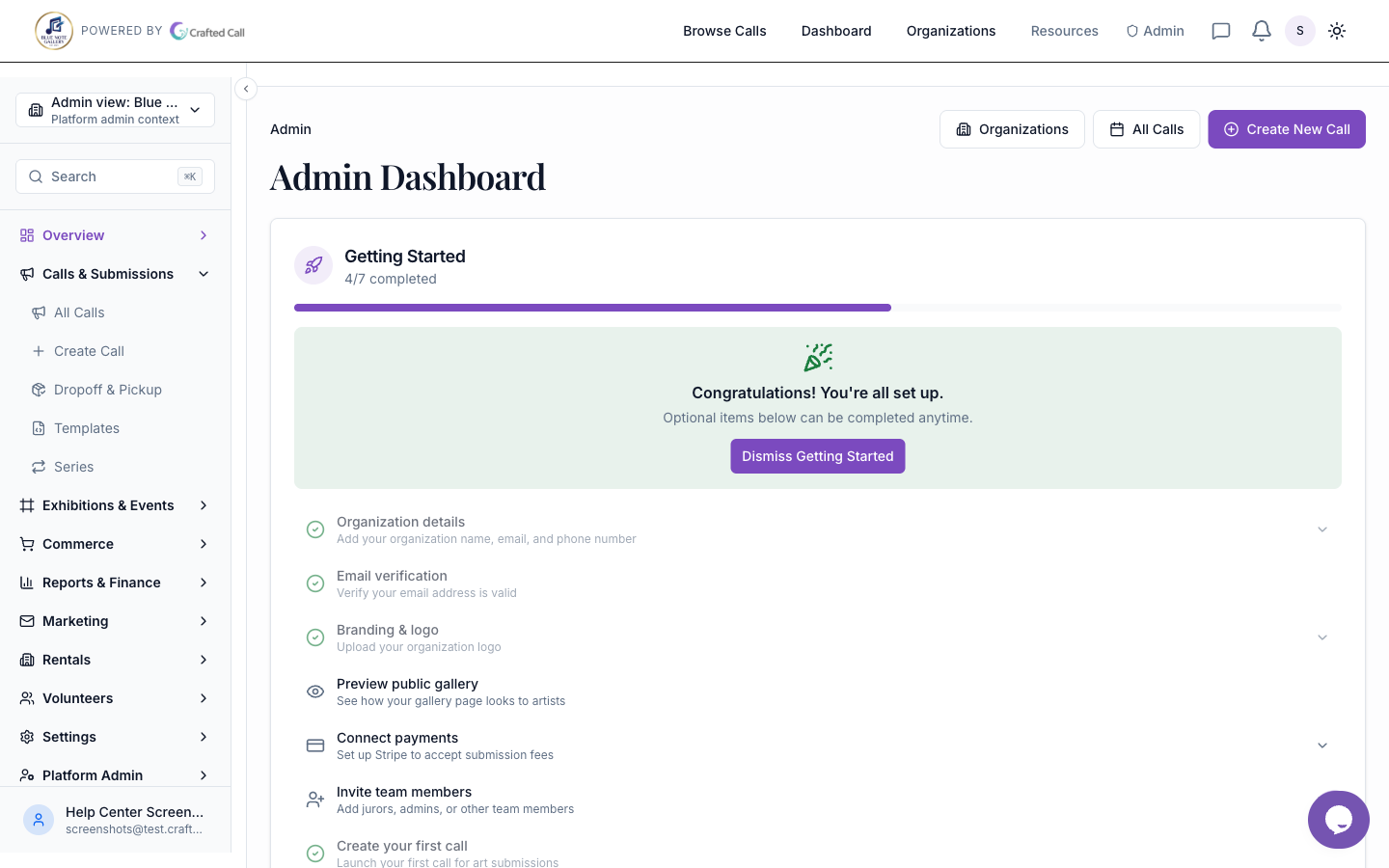
Your dashboard carries a checklist called Get Your Gallery Ready, with a progress ring. It splits into two groups.
To Go Live:
- Confirm your country, currency and time zone. Everything else depends on this, which is why it comes first.
- Create or import your first call.
- Publish your first call. This is the real milestone. A gallery with a published call is set up; a gallery with a perfect profile and no call is not.
- Name your gallery. Stays open while you still carry the placeholder name.
- Publish your organization page.
When You're Ready:
- Connect Stripe if you'll charge fees. Once you have a call that charges a fee, this moves up into To Go Live. If your calls are free to enter, you never need it.
- Add your gallery phone & description.
- Upload your gallery logo.
- Invite a co-admin.
- Import artists and entries from a spreadsheet.
- Verify your marketing-email sender.
- Set your default commission rate.
- Choose your plan.
Work down it in your own time. Collapse the card when you have had enough of it.
Where the settings live
Everything on the checklist has a permanent home under Organization Settings, arranged in sections:
- Basic Info for name, logo and description.
- Domains for a custom web address.
- Emails and Support for how people reach you.
- Artist Credits for granting free submission credits to specific artists.
- Payments for Stripe, currency, commission and tax.
- Features and Advanced for what is switched on, plus storage, the data export and deletion. When you buy a plan, the modules it adds are switched on for you; if one is ever hidden, turn it back on under Features.
Localization, meaning country, locale, timezone, currency, paper size and measurement, lives with your other organization settings. See Localization and Currency for the full walkthrough, including what happens when you change currency after you already have calls.
Branding beyond the logo, meaning colors, fonts and how your identity appears in email and on your website, has its own workspace: Brand and Identity.
Working with several organizations
If you belong to more than one organization, the switcher at the top of the sidebar moves between them. It has a search box, it scrolls when the list is long, and the organizations you use most recently rise to the top on their own.
Star the ones you work in constantly and they collect under Favorites, in an order you can drag into shape. Confirm which organization is active before you edit anything, because each one keeps its own data, team, identity, calls and public pages.
What to do next
- Creating Your First Call for Artists, which is the checklist's real milestone
- Inviting Team Members
- Connecting Stripe for Payments, once you are charging
- Finding Your Way Around the Admin
Was this article helpful?